Showing posts with label safari. Show all posts

Wednesday, October 15, 2008

Honey i'm home

hi,


i know that i have been away for several month from the blog, but in my defenece i have to say it was for the greater good, i took the time to create a hebrew blog and a forum that helped a hundred people or so, small group, i know, but in israel it is alot.
i wish to revive this blog but i am thinking of writing more on mac related issues tips, tricks, applications review site spoted etc. ofcource that i will also write posts regarding hackintosh, the thing is that hackintosh subjects are hard to find since most have been written and covered allready, most of my work is support people through email or forum, i have decided to add donation button so it will keep me motivated, if you find my work helpfull please consider donating, i hope i can help you guys more this way.

if you wish you may send me mail and request issues to cover on the blog, kind of a wish list, also there are about 4-5 mail i received and yet to answer but be sure i will get to them on the comming weekend.
thanks guys for reading this blog, drop me a line and let me know what you like most about it.
Shay.

Monday, April 14, 2008

Make XP look like Mac

Have you ever wanted to make your XP (or Vista) look like a mac?
this post will explain how to dress XP up so it will look and partially behave (not really) like a mac.

the reason i wanted to do that is: i wanted to enjoy the beauty of mac on my XP at work, unfortunately i couldn't convinced my boss that Mac is the correct platform for development :-)

Change the Boot Screen
so first things first, lets change the first screen we see when we launch the XP/vista the boot screen. in order to do that we need to download the application that replace it, and the Apple boot screen:

  1. Stardock BootSkin
  2. Apple Boot Screen for XP
the result of the boot screen looks like this:

Granted its not a mac with the round circle but its better then XP boot screen.

Change Logon Screen
next thing you would like to change is the Logon Screen, this also done using Stardock utility, note that this is a Tiger logon screen, but i guess you can create easily a leopard logon screen, you can download it here:

  1. Stardock LogonStudio (for XP or Vista)
  2. Mac Tiger Logon screen

Here is how it looks on my XP:


Change Explorer to Finder (overall look and feel)
next part i wanted Explorer to look like Finder, and start menu bar like leopard menu bar, there are several ways to achieve that, the most popular is Windows Blinds again a Stardock product, but fortunately there is also a free option called FlyAKiteOSX (this one is actually taking care of everything logon screen, logoff screen, explorer, start menu etc. but as Tiger)

  1. FlyAKiteOSX home page (you got to see this site)
  2. Stardock WindowsBlinds (change the visual style of Windows XP)
  3. A Full Leopard Visual Style for WindowsBlinds
  4. Mac OSX Tiger Skin for WindowsBlinds
  5. and another skin of Tiger for WindowsBlinds (better one IMHO)

Here is the WindowsBlinds Configuration Window: (at the bottom you see the available visual style and a preview in the middle)

After you download the skin, you can import it using the "Add Visual Styles" button on the left, and after choosing the style press "Apply my changed" button on the left.

Install Apple Applications
next you would like to do (even if you will not change anything) you got to download the apple Safari browser and iTunes music player, beside making it more apple like OS these are very good (free) products that apple released for the Windows environments, they are not as good as on the mac (far from it) but still windows boring UI get some Mac injection of beauty. also if you would like to have a program like iPhoto then you should download Google's Picasa (if you haven't already)

  1. Apple Safari
  2. Apple iTunes
  3. Apple QuickTime
  4. Google Picasa


Change Icons and Wallpaper
the obvious part is the leopard or tiger wallpaper that will complement the windows rigged OS, and a set of icons to replace "My Computer", folder, Control Panel etc. icons. if you are using FlyAKiteOSX that will make a complete makeover to your windows and you will not need any thing else (for a tiger look and feel), but if you have decided to try to achieve the full leopard look and feel then you will need Stardock IconPackager that will allow you to change every icon on windows.

  1. Stardock IconPackager
  2. Leopard Wallpapers
  3. Leopard Icons pack (press the Download link from the upper menu)
  4. Another Leopard Icon Pack (better one)
Sorry but didn't made screenshots for this part.

Install Leopard 3d Dock
Last but certainly not least, the Dock, what Leopard Mock up can be complete without a shiny sexy 3D dock. also here there is an option from Stardock named ObjectDock, but i think that the free RKLauncher is by far more beautiful and if you get the iVista version (yea, yea get that one) of RKLauncher you get the Grid and Fan Stacks like.


  1. Stardock ObjectDock (nice, have a free version and a leopard 3D look as well but no stacks)
  2. RKLauncher (O' Natural)
  3. RKLauncher iVista version (get this one! in order to download press the image, and there is a video displaying the Dock behavior)
here are my screenshots Dock:


Fan (note the Drawers icons):


Grid stack (the stack background is transparent just like in leopard):


Add Expose and Spaces
lastly we need to add some behavior and to invest a little in the feel and not just in the look,
there are two more additions i used: one is the Expose like for windows and the other is the Spaces like for windows.
now this one was a little hard to choose since there are a lot of them, but i will not include all of them, but here are some i tried:
Expose:

Spaces:

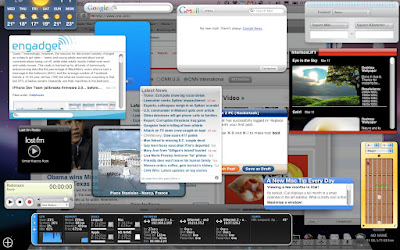
Add Dashboard
download and install one of the many dashboard like applications, there is the Google Desktop that displays the gadgates on a SideBar and you can drag the gadgates out of the sidebar to anywhere on the screen (and auto hide the SideBar). but it will not allow you to hide them all and display all on demand using a hotkey, only from the tray icon or sidebar

this is where the Yahoo! Widgets come in to the game, it displays the widgets in a SideBar (optioanl) that shrinks down when idle, and can be removed or auto hide, the widgets also display on the desktop and can be right cliced->hide and revealed when moving to "Heads Up" mode, you can right click the side bar or tray icon and select "Heads Up" or you can use the HotKey associated with This mode. this mode show all the hidden widgets at once and darken the screen just like in OSX (no kinky animation but stil...), just dont forget to choose "" from options so the blue background will disappear and replaced with the darker glass. (see the screenshots and movie at the end of this post). another cool faeture is that it can put widgets in 3 modes:

1. normal like any other window
2. always on top (always show the window in the foreground on top of other windows)
3. always in the back (as if it lives on the desktop)

Dashboard:


another application i suggest to use is "TransBar" which allows you to make the XP bar transparent, this way you can edit your wallpaper to display the OSX bar and when clicking on the apple - the start menu appear (tacky i know)

and here are some screenshots of the end results:


Enjoy.

Saturday, March 29, 2008

Develop menu on Safari


how many of you noticed this feature? not sure why it is left, it looks like a developer debug menu left behind, but it is cool and very good for developers that wants to try html/JavaScript fragments, and debug/performance tune their web application.


from the "Safari" menu click on "Preferences" then goto tab "Advanced" and check the lower checkbox named "Show Develop menu in menu bar".


next you see the "Develop" menu and its options at the menu bar.

with this menu you can open a snippet editor that allows you to key in html/JS snippets and see the behavior immediately.


another thing you can do is control the way that safari identifies to the web site, a lot of clients supported.


more you can disable/enable cache, images, styles, JavaScript, etc.

another option this menu provide is and error console that provide a log for errors that occurre during page display or ajax call.


next we have the web inspector and network monitor that allows to inspect what a page is downloading (images, JS, CSS, etc.) and how much time is spent on each component.


Enjoy (especially if you are web developers).

Leopard security breached due to Safari vulnerability at CanSecWest


a new security breach has been discovered in OS X Safari, a hacker named Charlie Miller has hacked into a macbook air in under 2 minutes and read a file in the contest PWN2OWN in the security conference CanSecWest that is held in Canada (partially sponsored by Microsoft and Google).


the happy hacker beside getting the recognition he deserve, he also get to keep the computers he successfully hacked (in addition to the 10,000$ reward), he was the one that hacked into the iPhone first at last years security summit, and he also talked about it in the CanSecWest.

what is the exact security
you can read all about it anywhere, here is a NYTimes Link, and here is another link,

i think that if he succeeded under 2 minutes then he came prepared from home, and it got me thinking, who the hell will spend a great hack like that on a vista or linux that runs on PC its worth more to hack a mac especially a macbook air.

the security threat or hack method is not publicized yet, the security expert miller was signed by TippingPoint for his discovery and did not publish the hack method.

i was very disappointed to hear that old crappy vista wasn't the first to fall, and leopard that does everything right got busted probably due to rapid development and extreme speed of releases on safari behalf, we have seen many versions of safari in the past month alone,
its good for us as consumers but bad for bugs, security threats, and apples reputation.

of course that the Microsoft lovers laughing their @ss off but its like a leper laughing at a guy with a zit so that reminded me this youTube video (very funny).

Vista however got hacked at the last day of the contest by Shane Macaulay, with the help of Derek Callaway, the fujitsu laptop and vista got hacked due to a Java security workaround, the box contained Microsoft latest SP1.
the sole remaining undefeted box was Sony Vaio with Linux.


hope this is the last blow apple will take for Microsoft (probably not),

Enjoy (well i at least try to).

Sunday, March 16, 2008

another cool click and drag in safari

hi,

this is another cool feature of click and drag showing the simplicity of the great big apple,
the safari design is so good that it identify a URL object in its link state or text state an allow to drop it in the tab bar, Download windows, bookmark bar etc. no matter the source, even a textedit, and no matter the ammount it support multiple URLs.


another great thing is that you can view a source of html for instance and copy a URL of lets say MP3 and paste it into the download window, using Command+V or Edit->Paste when the Downloads window is focused and the download immediately starts. (it helped me when i got to a page that insisted opening the MP3 in the QuickTime and no download link available)

you can click and drag links and URLs so they will be opened as a tab or downloaded, including multiple URLs, here are some videos displaying that:

open link as a new tab:


open text URL as a new tab:


download link using click and drag:


download multiple text URLs using click and drag:


Enjoy.

Wednesday, March 12, 2008

All About Widgets


Ever wondered what are those wonderful things Mac calls Widgets? how to back them up, what if i want to delete or uninstall? well here is a small guide for you, starting with basics and cover the rest.

What is a widget?
a widget is a small application that runs in a layer named Dashboard, it is brought to display by pressing the F12 key, or use the Dashboard icon on the dock. once you do that your screen turns a bit darker and the widgets land on your screen with gorges animation.

move, close, add, remove, configure widgets
you can click and move widgets around, you can interact with them (some have controls, some have buttons and scroll or even a complete game), they are simple html pages and they reside on a PNG image. you can configure a widget by clicking the small 'i' circle (it will appear on most widgets), you make the 'i' circle appear by hovering the mouse on the widget, once you click it the widget will 3D flip and a configuration screen appears inside it, to exit that screen simply press "Done".

you may close a widget so it wont appear on the dashboard anymore by holding the option key (ALT on hackintosh) and hover with the mouse on a widget, a cross appears on the widget upper left corner, and you may click it so the widget will not appear anymore, also a wonderful animation is associated with it.

Manage Widgets
another way to see the close cross on all widgets and/or add other widgets is to press the plus sign in the lower left corner of the dashboard screen, again an eye candy animation is associated with the process. the lower screen is filled with all available widgets and you may click them so they will be added to dashboard, you may click and drag them to the place you want them to appear, or you may press the little arrows on the left and right to scroll between available widgets.

you can also press the first widgets icon (or the "Manage Widgets" button above it) it will display a popup window with the widgets listed in it, you may sort by name, or by date, you can mark the checkbox so the widget will not appear even in the lower part of the screen when you press the plus sign, or (for some widgets) you can press the red circle with minus sign next to it in order to delete the widget and move it to the trash.

Get More Widgets
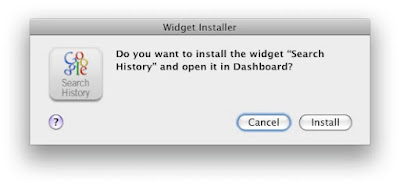
last thing you can do with the "Manage Widgets" popup is to press the "Get More Widgets..." button on the bottom, it will open apples widgets download page and exit the dashboard, once you have chosen a widget to download it will ask you if to install or cancel,

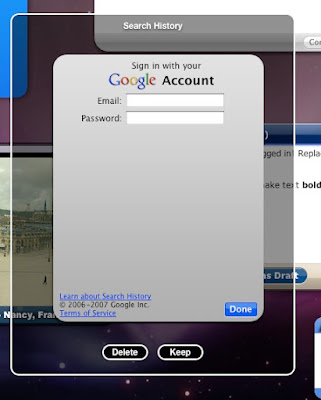
if you click install the dashboard opens up, displaying  the recently downloaded widget in the center of the screen with the buttons "keep" and "delete" buttons giving you last chance to get rid of it.


Exit the Dashboard
the ways available to exit the dashboard are: pressing an area where there are no widgets in it, or pressing F12 again.

Web Clip Widgets
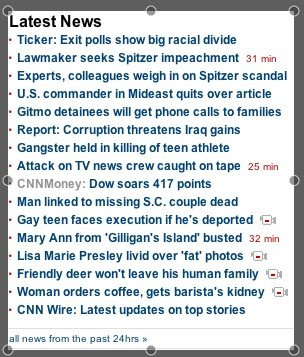
the last basic and most attractive part in widgets i explain is the web clip, it is a safari plugin that allows it to cut a part of a web page and save it as a widget on the dashboard, making all the web available to you as you wish it to be.
the procedure is very simple:
1. open safari and go to the page you want to save part as a widget.
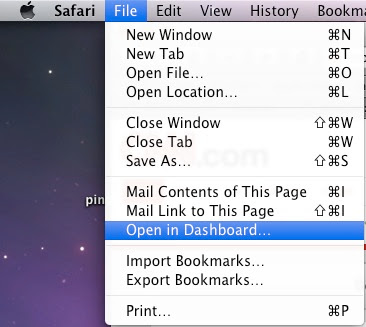
2. from File menu choose "Open in Dashboard"

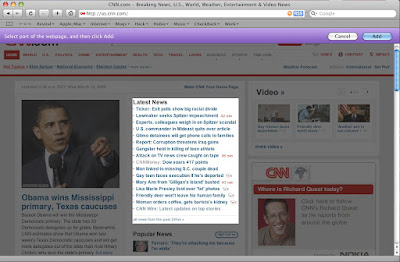
3. the safari screen darkens and when you hover with your mouse the appropriate part is lighten

4. click on the chosen part (a circles will appear on the edges of the chosen part allowing you to adjust the size you want)

5. on the purple upper bar click "Add"
6. the widget will load and display on your dashboard


Lets move to some more complex stuff,

Moving widgets from dashboard to desktop
moving widgets from dashboard to desktop is covered in this post.

Backup or manually delete widgets
the widgets (ones you download) reside in the folder:

/Library/Widgets

you can remove them from this folder and they will disappear from the dashboard, you can add previously backed-up widgets to this folder and they can be added to the dashboard from the "Manage Widgets" drawer.

Widgets structure
the widget file extension is: wdgt, and they are actually a folder (like most executables on mac), that means you can do right click "Show Package Contents" and browse them.

all of them should include the files:
Default.png (this is the main widgets window)
Icon.png (it will be displayed when the lower drawer on the dashboard appears, this is optional)
XXX.html (some html file that is the actual application that forms the widgets)
info.plist (this is the definition file that accompanies every install app in Mac OS X)

there might be other files like "lproj" folders to support multilingual resources, css files or flash files etc.

Keyboard Shortcuts
Command++ = from within dashboard you can click on Command and Plus sign (+) to open and close the widget drawer.

Command+R = in dashboard you can point to a widget and press Command + R and cause the widget to refresh its data (it will perform some nice twirl animation)

Tweak the Widget
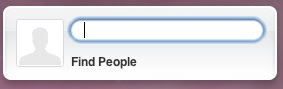
of course since the widget is an html part you may edit it as you wish and achieve some cool results. for instance lets change the string "Address Book Search" in the "Address Book" widget.

1. goto folder:
/Library/Widgets

2. right click the "Address Book" widget and choose "Show Package Content"

3. enter into the folder: "English.lproj"

4. open the file: localizedStrings.js with some text editor (like BBEdit/Smile)

5. change the words "Address Book Search" in the line: 
localizedStrings['Address Book Search'] = 'Address Book Search';
to anything you want like:
localizedStrings['Address Book Search'] = 'Find people';
6. save and open dashboard, remove the "Address Book" widget if you have it and add it back on, it should display what you wrote, mine looks like this:


so if you know html, javascript, css, flash, you can alter the way your widgets act and behave, and more then that you can create one of your own.

Widgets Process
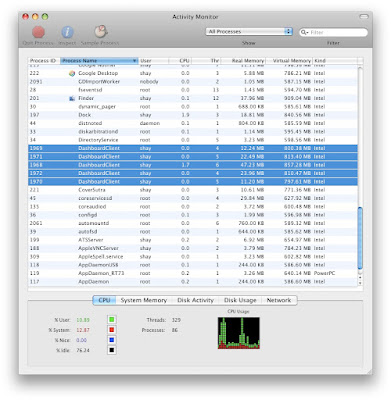
every Widget you add to dashboard will add (depends on the load and need) a process named "Dashboard Client", it will consume a memory depending on how many widgets it needs to handle,


roughly the main process (one always stay to handle dashboard it self) will consume 10M and if a widget is added it should launch another process and it will consume about 10M as well, next widget add should be handled by the two processes already running but the first now consume about 13-14M and the second about 21-23M, next could launch another process and will use (depends on the widget size, logic, and code) 3-6M, i have never seen more then 12 "Dashboard Client" process at the same time but it could potentially add as much as it needs.

if you try to kill a process it will restart immidiatly as it needs, even if you manage to kill (and they will auto re-born) all the clients it will not harm or change the way your dashboard works.
you will return to the dashboard and you will see it the same. more then that if you start closing widgets the number of process (A.K.A pool size) will reduce to the needed size.

here are some links for good widgets:
Google Gadgets for mac (download and install google application that puts google gadgets on your dashboard)
Yahoo widgets for mac (using a browser plugin for download and install)
InnerMindMedia cool Widgets (and icons and apps...)

Enjoy.

Wednesday, March 5, 2008

Safari Moving Tabs around (move, merge, separate)

this one display exactly why apple are amazing, this is such a simple and beautiful thinking.


my movie display how to move tabs in safari from window to window or merge windows and seperate them back. (just click and drag between windows or from window to the desktop)


Enjoy.

 
the menu is from: Milonic DHTML menus