Friday, March 14, 2008

BIOS Options for hackintosh

this post is a continue to the "Prepare the disk partitions" post,

this post cover BIOS options that you need to try and play with in order to get the installation running, the installed system to boot and allow the leopard work smoothly.

*****for newbies*****
todays all PC computers have a BIOS (Basic Input Output System), it is a CMOS chip saving both configurable data and permanent data and a small code part needed to boot the machine and handle hardware initialization commands.

BIOS have a setup screen that allows you to specify the configuration you prefer for the system. the bios screen can be accessed in many different ways depending on the computer. some machines use "del" button, when the computer loads, just press delete and the BIOS appears, some use F2 or F12 all depends on the type of bios installed on your machine ("American MegaTrends" or "Award Software" or "Phoenix Technologies" etc.), in the first screen you see when the PC powers up there should be a message saying how to enter setup/bios.


*****for newbies End*****

Execute Disable (XD/NX)
this should be the first thing to set in the bios, it is the most important part if you decided to use vanilla kernel, the thing is that intel created a virus/warm protection in the CPU level (some sort of security feature), since warm and virus infect the computer by copying their execution instructions to a buffer, the CPU allows the OS to mark what areas in the memory are for data usage only and if someone tries to execute code from those areas the CPU wont allow it, that is why you can set the CPU to activate its "No Execution" (NX on AMD CPU) protection or "Execute Disable" (XD on intel CPU) protection. probably leopard decided to support it fully, and not load if this option is not enabled in order to provide a safer OS, and probably that is why if this parameter is set to false or disabled the system will loop reboot forever until the parameter is set back to enable.

set the "Execute Disable Function" to Enabled

sometimes it is called XD (eXecution Disabled) and looks like this:

Max CPUID Value Limit
During runtime the OS ask the CPU for information regarding different areas, each query is done using a hex value set to a CPU register, not all CPU supports all features this is why at boot time the OS check what are the supported features, each CPU gives different answers to a given value depending on the number of features it support, and in this way it determines what CPU it is running on, but older OS such as NT, 95, 98, Jaguar, Panther etc. don't know of the new feature that new CPU has, that is why this BIOS parameter exist, it tells the CPU to act as if it is limited in the number of features it support for the sake of older OS, in our case leopard support all the CPU query features (leafs), that is why we need to set this parameter to disable and to allow the CPU to return its true values and to be able to identify the CPU for its true type.

set the Max CPUID Value Limit to Disabled

CPU Internal Thermal Control
latest CPUs support internal thermal sensors and the CPU track the temperature, if it reaches a high or too low threshold counter measures are taken, such as: lowering voltage and speed of CPU (so less heat is generated) allowing CPU to cool down, sometimes when temperatures are critical the CPU is allowed to freeze all work or shutdown the computer as precaution measures (depending on the BIOS setup). this parameter can be set to enabled or disabled since today the hackintosh scene cannot support the thermal control from leopard (for all PCs), and as part of the installation you are asked to remove the kext (kernel extension) responsible for it, so you may enable it, i prefer to disable it and if everything is working well you can return and enable it back on to enabled value, if you don't have disabled (like me) Auto value will do just fine.

set CPU Internal Thermal Control to Disabled or Auto

ACPI 2.0 Support (Advanced Configuration and Power Interface)
ACPI is a standard that allow the OS to control the power management of hardware components, the BIOS feature only enable or disable the interface not the OS feature, that means that if the BIOS parameter is enabled then the OS can use (or not) the ACPI interface to control board and peripherals power supply, but if this feature is disabled then even if the OS will try to use the interface and activate components power it cannot do it (hence the word 'Support' in the title), and when leopard tries to control the power of the computer components and the ACPI is not available the result is eather leopard wont load or crash during runtime.
another parameter that needs to be set is the: ACPI APIC Support and it should be set to enabled for the same reasons.

set ACPI 2.0 Support to yes
set ACPI APIC Support to enable


Core Multi-Proccessing
this BIOS feature is very simple yet very important, it allows Core 2 Duo CPUs to turn into Core 2 Solo, meaning the CPU will use only one of its cores, after hackintosh install if you experience a reboot loop (without the ability to reach single mode even) then try disable this option, otherwise use enabled.

set Core Mutil-Proccessing disable (if all goes well set enabled)


ATA/IDE Mode
in this BIOS option you can set the standard your hard driver controller support,
it can support: IDE for legacy drives, SATA for new driver and RAID if available in your PC system, make sure these option set comply with your hardware setup.

if you use SATA then choose the AHCI option if you use IDE choose the ATA/IDE Mode: Legacy.
S.M.A.R.T option should be enabled unless you receive a S.M.A.R.T. error during DVD boot time, in that case disable it.

for SATA:
set ATA/IDE Mode: Native
set Configure SATA as: AHCI
set S.M.A.R.T: Enabled

for IDE driver:
set ATA/IDE Mode: Legacy
set Configure SATA as: IDE
set S.M.A.R.T: Disabled

thats it, next step is the installation process it self refer to "Install Tiger" or "Install Leopard" posts.

Enjoy.

Prepare the disk partitions

This post is a continue to the "Gather Hardware Data" post.
in this post we will prepare the disk space needed for the leopard and/or tiger install, although you can do this (partially) from the install screens at the Disk Utility menu, still there are several things that can't be done from there, for instance resize partitions, delete partitions, etc.

after you see the number of hard drives you have and the number of partitions, its time to decide in what partition should the tiger and leopard installations shell reside in, (if you wonder why do you need tiger then the answer is if you have an upgrade version of leopard then you need it see more at this post.) both leopard and tiger needs separated partitions, the minimum size required is 5G - 5.5G i would use 6G for tiger and as much as needed (above 5G) for the leopard, the tiger can be wiped and used for other needs after we finish with it.

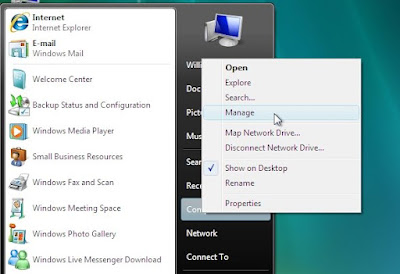
so from XP right click "My Computer" and choose "manage"


from vista open "Start Menu" and right click "Computer" and choose "Manage"


next the management console appear (from here looks the same on XP and vista), on the left tree select "Storage" and "Disk Management"


on vista it looks like this:


now you can do operations like select the appropriate partition and delete it and create an empty one so there will be a free space for the installation (note if you delete the partition data on that partition is lost forever there is no undo)


in vista there is another option, you can shrink the partition on the account of the free space available, so for instance if you have a 50G partition with data on it, but 30G is free space, you can shrink the partition to still exist in vista and keep the data intact but take for instance 25G from the free space in order to create another partition, in that case the windows partition win bbe 20G occupied data 5G free space and the new partition 25G unformatted. (there is no need to format it since we will not use windows format (like NTFS, FAT, FAT32) but mac format (HFS+)). in order to shrink a partition do this:
right click on the selected partition from the graphical representation and choose "Shrink Volume":


then you see a dialog asking you to specify the data to convert from free space to unformatted partition


in the end you will get something looking like this:


the problem with this solution is that like every Microsoft solution it looks as if the developers did not take the time to learn, design, or test the feature, sometimes there are blocking files that reside at the middle or end of the partition, they are not movable, and they prevent from shrinking the whole partition free space, the way to workaround this is to use external Defrag tool (Microsoft built in defrag does not do the job), tools like: "Paragon partition manager", "DiskKeeper" (i used it its fast reliable and delivers),


before activating these tools do this:
  1. disable System Restore and shadow copy
  2. disable on the designated drive the virtual memory system cache
  3. then you can defrag MFT
  4. and defrag the files
in order to disable the virtual memory (A.K.A Paging file) do this:
open "Start Menu" right click "Computer" and select "Properties",


a "System properties" window appear,


on the left sidebar at the bottom there is a "System Performance" link, press it, and a "Performance Options" dialog appears,


in "Virtual Memory" click the "Change" button at the bottom, "Virtual Memory" dialog appears,


in the upper HD table select the HD you wish to shrink and choose for it the "No paging file" radio button, then press set and ok, reboot the computer.

in order to turn off "System Restore" do this:
from the "System Property" windows choose the "System Protection" link,
it will display the "System Properties" dialog, choose the "System Protection" tab,


then click on the "System Restore" button, uncheck the HD you wish to shrink, it will ask you to verify, then press "Turn System Restore Off".


press OK and close all dialogs and reboot the machine.

thats it, next you need to start the install procedure for that please goto the "BIOS Options for hackintosh" post.

Enjoy.

Gather Hardware Data

this is a continue post to the first post of "how to install hackintosh"


in this post i explain all there is to know about gathering the hardware information from the windows already installed on the PC, if this is not the case, you can skip this post or install windows and gather the info, it sounds crazy i know, but worth it, it will allow you to setup the correct drivers and avoid incompatibility issues.

the gathering data starts with checking that your computer is "hackintosh ready",
this is done by executing the CPU-z app that you downloaded in the previous section,
there you will see several tabs each elaborating on the hardware you own.
tabs include: CPU, Cache, Mainboard, Memory, SPD, About.


the most important tab we will use is the CPU, what you need to check is that your CPU support the feature SSE3,


although today you can download "iatkos v1.0iR2" leopard 10.5.2 image that supports SSE2 for older PCs or AMD based PC, non the less i urge you to gather all the info you can and save it, you never know what application/driver/hardware you will install/custom/buy in the future that will require this info, and if you are like me, removed your windows partition (since loosing 40-50G just for the need of 3-7 apps is not justifiable) then you will need this info stashed.


after saving all the tabs in the CPU-z (probably as jpg on a remote computer or disk on key), next we will head on to the Device Manager.
on XP right-click the "My Computer" icon on the desktop and choose "Properties"


on vista open the start menu and right-click "Computer"


on XP after that you see the "System Properties" dialog, choose the "Hardware" tab and click the "Device Manager"


on vista you see this next screen (the new System Properties), and on the left side bar you click on "Device Manager"


from this point both XP and Vista look the same (beside look and feel) so next we go through major hardware components that usually needs drivers, for instance Display Adapter, Network Card, Sound blaster, if you have some special mouse or keyboard, Bluetooth, Power Management, etc. and then we right click these icons and save the info as much as we can.


what we need to save is: irq, memory range, the exact name and model of the component, in several i would suggest saving the device id and vendor id, these parameters can be found at the "details" tab under the first drop-down item "Device Instance ID",


the line that appear includes the Vendor ID next to the VEN_ string in this example it is: "10DE", also next to it you find the Device ID next to the string DEV_ in this case it is: "00C0".

next we will collect the EDID information of the "Display Adapter", you do that using the previously downloaded "softMCCS" app.
  1. run the application and you will see this next screen
  2. open the EDID Identification section
  3. go to "Raw Data" and copy the content, save it as text
next step is to clear HD space or decide on what disk/partition the Hackintosh will reside on.
in order to do that we need to take two steps: 
  1. learn/save your hard drive/partition data 
  2. take action such as delete partition or shrink a partition.
first step:
open command box (A.K.A DOS Box) from run write CMD


next write (XP or VISTA) DiskPart, it will enter the windows "Disk Partition management" CLI (Command Line Interface).


if you write ? and press enter you get a help screen that display the available commands and a short explanation next to them.


now use the command "list" in order to see all the available hard disk, partitions, and if needed volumes
in order to see all the hard drive installed on your system use: "list disk"


after displaying all the HD you need to choose the hard disk you want to work on / see further details on. you do that using the command: "select disk X" where X stands for the hard drive number.


after selecting the drive you can see all the partition on the selected disk write: "list part"


now that you know your hard drives and installed partitions (especially size and their number) write it down, you will need it in the install stage.

you can select the partition (in case you need it) using "select part X" where X stands for the desired partition number.


and you can display the list of volumes on your PC (volume can be a single hard drive, CD, DVD, several Hard Drives combined together into a single volume etc.) using the command: "list vol"


Note: the bootable Hard Disk is marked with an astrik (*) sign next to it.
you may change it using the "Active" command but we will do it after the install stage so there is no need to do it here.

you can also ask for details at any stage on a specific object (disk,part,vol) using the Details command.


in order to exit the DiskPart utility simply write "Exit"


next we need to prepare the disk space needed for the leopard and/or tiger install goto the post: "Prepare the disk partitions"

Enjoy.

Wednesday, March 12, 2008

All About Widgets


Ever wondered what are those wonderful things Mac calls Widgets? how to back them up, what if i want to delete or uninstall? well here is a small guide for you, starting with basics and cover the rest.

What is a widget?
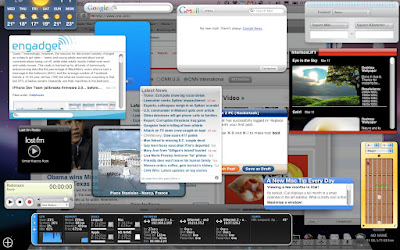
a widget is a small application that runs in a layer named Dashboard, it is brought to display by pressing the F12 key, or use the Dashboard icon on the dock. once you do that your screen turns a bit darker and the widgets land on your screen with gorges animation.

move, close, add, remove, configure widgets
you can click and move widgets around, you can interact with them (some have controls, some have buttons and scroll or even a complete game), they are simple html pages and they reside on a PNG image. you can configure a widget by clicking the small 'i' circle (it will appear on most widgets), you make the 'i' circle appear by hovering the mouse on the widget, once you click it the widget will 3D flip and a configuration screen appears inside it, to exit that screen simply press "Done".

you may close a widget so it wont appear on the dashboard anymore by holding the option key (ALT on hackintosh) and hover with the mouse on a widget, a cross appears on the widget upper left corner, and you may click it so the widget will not appear anymore, also a wonderful animation is associated with it.

Manage Widgets
another way to see the close cross on all widgets and/or add other widgets is to press the plus sign in the lower left corner of the dashboard screen, again an eye candy animation is associated with the process. the lower screen is filled with all available widgets and you may click them so they will be added to dashboard, you may click and drag them to the place you want them to appear, or you may press the little arrows on the left and right to scroll between available widgets.

you can also press the first widgets icon (or the "Manage Widgets" button above it) it will display a popup window with the widgets listed in it, you may sort by name, or by date, you can mark the checkbox so the widget will not appear even in the lower part of the screen when you press the plus sign, or (for some widgets) you can press the red circle with minus sign next to it in order to delete the widget and move it to the trash.

Get More Widgets
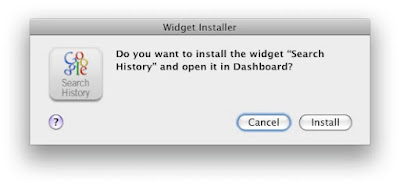
last thing you can do with the "Manage Widgets" popup is to press the "Get More Widgets..." button on the bottom, it will open apples widgets download page and exit the dashboard, once you have chosen a widget to download it will ask you if to install or cancel,

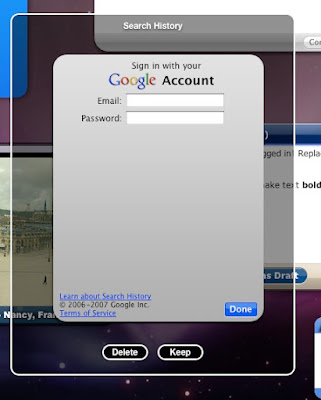
if you click install the dashboard opens up, displaying  the recently downloaded widget in the center of the screen with the buttons "keep" and "delete" buttons giving you last chance to get rid of it.


Exit the Dashboard
the ways available to exit the dashboard are: pressing an area where there are no widgets in it, or pressing F12 again.

Web Clip Widgets
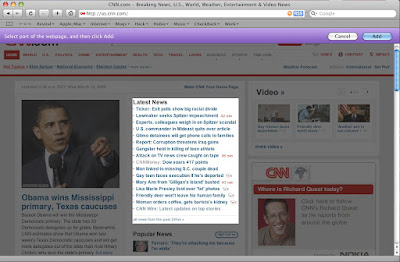
the last basic and most attractive part in widgets i explain is the web clip, it is a safari plugin that allows it to cut a part of a web page and save it as a widget on the dashboard, making all the web available to you as you wish it to be.
the procedure is very simple:
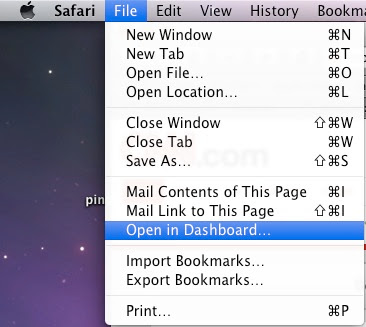
1. open safari and go to the page you want to save part as a widget.
2. from File menu choose "Open in Dashboard"

3. the safari screen darkens and when you hover with your mouse the appropriate part is lighten

4. click on the chosen part (a circles will appear on the edges of the chosen part allowing you to adjust the size you want)

5. on the purple upper bar click "Add"
6. the widget will load and display on your dashboard


Lets move to some more complex stuff,

Moving widgets from dashboard to desktop
moving widgets from dashboard to desktop is covered in this post.

Backup or manually delete widgets
the widgets (ones you download) reside in the folder:

/Library/Widgets

you can remove them from this folder and they will disappear from the dashboard, you can add previously backed-up widgets to this folder and they can be added to the dashboard from the "Manage Widgets" drawer.

Widgets structure
the widget file extension is: wdgt, and they are actually a folder (like most executables on mac), that means you can do right click "Show Package Contents" and browse them.

all of them should include the files:
Default.png (this is the main widgets window)
Icon.png (it will be displayed when the lower drawer on the dashboard appears, this is optional)
XXX.html (some html file that is the actual application that forms the widgets)
info.plist (this is the definition file that accompanies every install app in Mac OS X)

there might be other files like "lproj" folders to support multilingual resources, css files or flash files etc.

Keyboard Shortcuts
Command++ = from within dashboard you can click on Command and Plus sign (+) to open and close the widget drawer.

Command+R = in dashboard you can point to a widget and press Command + R and cause the widget to refresh its data (it will perform some nice twirl animation)

Tweak the Widget
of course since the widget is an html part you may edit it as you wish and achieve some cool results. for instance lets change the string "Address Book Search" in the "Address Book" widget.

1. goto folder:
/Library/Widgets

2. right click the "Address Book" widget and choose "Show Package Content"

3. enter into the folder: "English.lproj"

4. open the file: localizedStrings.js with some text editor (like BBEdit/Smile)

5. change the words "Address Book Search" in the line: 
localizedStrings['Address Book Search'] = 'Address Book Search';
to anything you want like:
localizedStrings['Address Book Search'] = 'Find people';
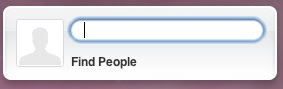
6. save and open dashboard, remove the "Address Book" widget if you have it and add it back on, it should display what you wrote, mine looks like this:


so if you know html, javascript, css, flash, you can alter the way your widgets act and behave, and more then that you can create one of your own.

Widgets Process
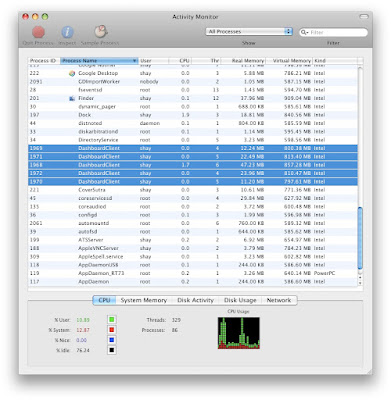
every Widget you add to dashboard will add (depends on the load and need) a process named "Dashboard Client", it will consume a memory depending on how many widgets it needs to handle,


roughly the main process (one always stay to handle dashboard it self) will consume 10M and if a widget is added it should launch another process and it will consume about 10M as well, next widget add should be handled by the two processes already running but the first now consume about 13-14M and the second about 21-23M, next could launch another process and will use (depends on the widget size, logic, and code) 3-6M, i have never seen more then 12 "Dashboard Client" process at the same time but it could potentially add as much as it needs.

if you try to kill a process it will restart immidiatly as it needs, even if you manage to kill (and they will auto re-born) all the clients it will not harm or change the way your dashboard works.
you will return to the dashboard and you will see it the same. more then that if you start closing widgets the number of process (A.K.A pool size) will reduce to the needed size.

here are some links for good widgets:
Google Gadgets for mac (download and install google application that puts google gadgets on your dashboard)
Yahoo widgets for mac (using a browser plugin for download and install)
InnerMindMedia cool Widgets (and icons and apps...)

Enjoy.

 
the menu is from: Milonic DHTML menus