Have you ever wanted to make your XP (or Vista) look like a mac?
this post will explain how to dress XP up so it will look and partially behave (not really) like a mac.
the reason i wanted to do that is: i wanted to enjoy the beauty of mac on my XP at work, unfortunately i couldn't convinced my boss that Mac is the correct platform for development :-)
Change the Boot Screen
so first things first, lets change the first screen we see when we launch the XP/vista the boot screen. in order to do that we need to download the application that replace it, and the Apple boot screen:
- Stardock BootSkin
- Apple Boot Screen for XP
the result of the boot screen looks like this:
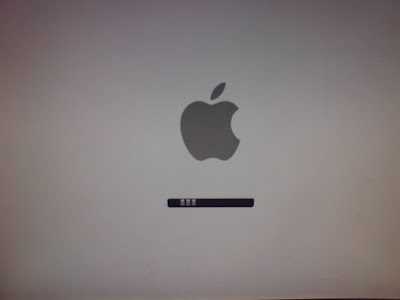
Granted its not a mac with the round circle but its better then XP boot screen.
Change Logon Screennext thing you would like to change is the Logon Screen, this also done using Stardock utility, note that this is a Tiger logon screen, but i guess you can create easily a leopard logon screen, you can download it here:
- Stardock LogonStudio (for XP or Vista)
- Mac Tiger Logon screen
Here is how it looks on my XP:
 Change Explorer to Finder (overall look and feel)
next part i wanted Explorer to look like Finder, and start menu bar like leopard menu bar, there are several ways to achieve that, the most popular is Windows Blinds again a Stardock product, but fortunately there is also a free option called FlyAKiteOSX (this one is actually taking care of everything logon screen, logoff screen, explorer, start menu etc. but as Tiger)
- FlyAKiteOSX home page (you got to see this site)
- Stardock WindowsBlinds (change the visual style of Windows XP)
- A Full Leopard Visual Style for WindowsBlinds
- Mac OSX Tiger Skin for WindowsBlinds
- and another skin of Tiger for WindowsBlinds (better one IMHO)
Here is the WindowsBlinds Configuration Window: (at the bottom you see the available visual style and a preview in the middle)
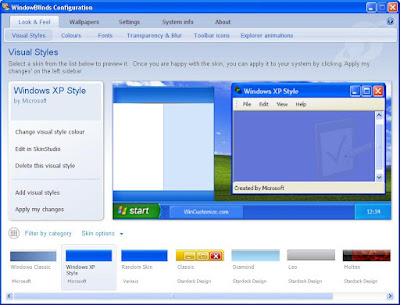
After you download the skin, you can import it using the "Add Visual Styles" button on the left, and after choosing the style press "Apply my changed" button on the left.
Install Apple Applicationsnext you would like to do (even if you will not change anything) you got to download the apple Safari browser and iTunes music player, beside making it more apple like OS these are very good (free) products that apple released for the Windows environments, they are not as good as on the mac (far from it) but still windows boring UI get some Mac injection of beauty. also if you would like to have a program like iPhoto then you should download Google's Picasa (if you haven't already)
- Apple Safari
- Apple iTunes
- Apple QuickTime
- Google Picasa
 Change Icons and Wallpaper
the obvious part is the leopard or tiger wallpaper that will complement the windows rigged OS, and a set of icons to replace "My Computer", folder, Control Panel etc. icons. if you are using FlyAKiteOSX that will make a complete makeover to your windows and you will not need any thing else (for a tiger look and feel), but if you have decided to try to achieve the full leopard look and feel then you will need Stardock IconPackager that will allow you to change every icon on windows.
- Stardock IconPackager
- Leopard Wallpapers
- Leopard Icons pack (press the Download link from the upper menu)
- Another Leopard Icon Pack (better one)
Sorry but didn't made screenshots for this part.
Install Leopard 3d DockLast but certainly not least, the Dock, what Leopard Mock up can be complete without a shiny sexy 3D dock. also here there is an option from Stardock named ObjectDock, but i think that the free RKLauncher is by far more beautiful and if you get the iVista version (yea, yea get that one) of RKLauncher you get the Grid and Fan Stacks like.
- Stardock ObjectDock (nice, have a free version and a leopard 3D look as well but no stacks)
- RKLauncher (O' Natural)
- RKLauncher iVista version (get this one! in order to download press the image, and there is a video displaying the Dock behavior)
here are my screenshots Dock:

Fan (note the Drawers icons):
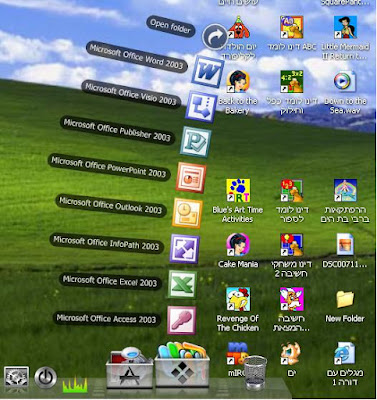
Grid stack (the stack background is transparent just like in leopard):
 Add Expose and Spaces
lastly we need to add some behavior and to invest a little in the feel and not just in the look,
there are two more additions i used: one is the Expose like for windows and the other is the Spaces like for windows.
now this one was a little hard to choose since there are a lot of them, but i will not include all of them, but here are some i tried:
Expose:
Spaces:
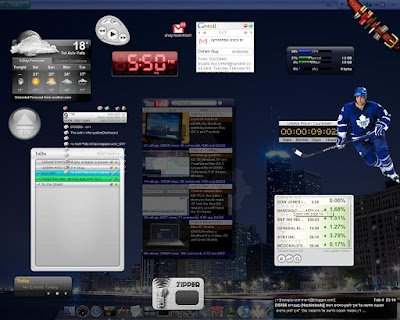
Add Dashboarddownload and install one of the many dashboard like applications, there is the Google Desktop that displays the gadgates on a SideBar and you can drag the gadgates out of the sidebar to anywhere on the screen (and auto hide the SideBar). but it will not allow you to hide them all and display all on demand using a hotkey, only from the tray icon or sidebar
this is where the Yahoo! Widgets come in to the game, it displays the widgets in a SideBar (optioanl) that shrinks down when idle, and can be removed or auto hide, the widgets also display on the desktop and can be right cliced->hide and revealed when moving to "Heads Up" mode, you can right click the side bar or tray icon and select "Heads Up" or you can use the HotKey associated with This mode. this mode show all the hidden widgets at once and darken the screen just like in OSX (no kinky animation but stil...), just dont forget to choose "" from options so the blue background will disappear and replaced with the darker glass. (see the screenshots and movie at the end of this post). another cool faeture is that it can put widgets in 3 modes:
1. normal like any other window
2. always on top (always show the window in the foreground on top of other windows)
3. always in the back (as if it lives on the desktop)
Dashboard:
another application i suggest to use is "
TransBar" which allows you to make the XP bar transparent, this way you can edit your wallpaper to display the OSX bar and when clicking on the apple - the start menu appear (tacky i know)
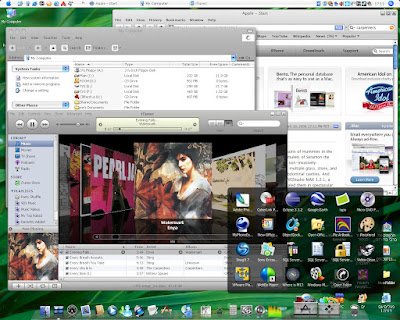
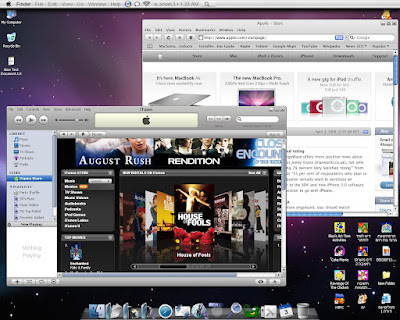
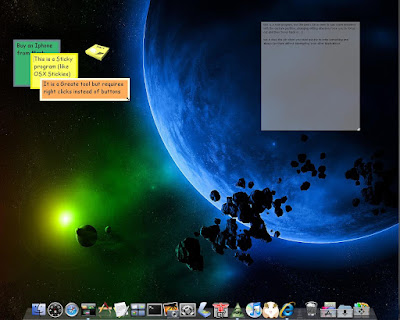
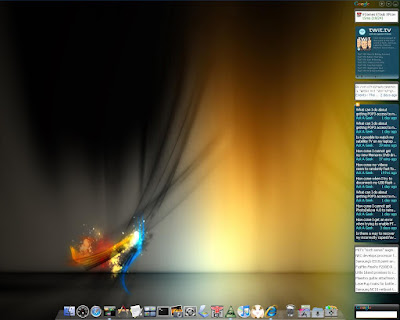
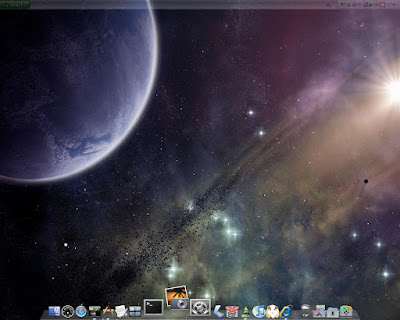
and here are some screenshots of the end results:
Enjoy.


